![logo flat.png]](https://8332146.hs-sites.com/hs-fs/hubfs/logo%20flat.png?height=40&name=logo%20flat.png)
What are Form Response Triggers?
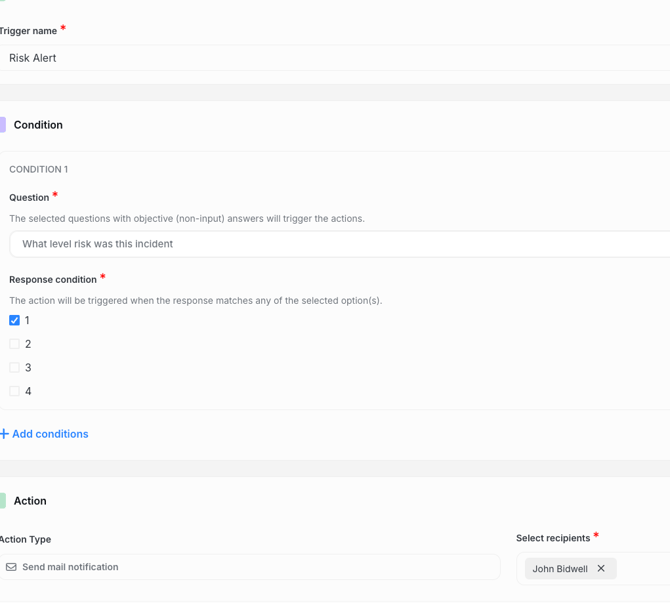
When a form is submitted in Delightree, a trigger can determine who gets notified.
Triggers can be conditional — meaning they only fire when a specific response condition is met, not on every submission.
- Send a notification to one or more designated recipients immediately on submission
👉 Existing forms are not affected. Trigger configuration is entirely opt-in.
Why This Matters
Until now, forms collected data. Someone had to check responses and decide what to do next.
With triggers, the form does that for you.
Example scenarios:
- A compliance check comes in with a failing response → HQ and the local supervisor are notified immediately
- A shift incident report is filed → the right manager gets an alert in real time, not hours later when someone remembers to check
The right people are looped in the moment a form is submitted — without anyone monitoring a responses inbox.
Who This Affects
HQ Admins Configure triggers from Forms settings. Any form can be turned into a workflow starter — not just a data collection tool.
Location Admins Location-level forms can now generate immediate alerts for local supervisors or operations teams when something needs attention.
Supervisors Receive real-time notifications when a trigger-enabled form is submitted. No need to check form responses manually — the alert comes to you.
How to Set Up a Trigger
After publishing a form:
- Go to the Triggers section in the form builder
- Click Add Trigger Notification — select who receives an alert on submission
- Add conditions
- Save and publish
Pro tip: Start with your most action-oriented forms — incident reports, equipment failures, shift issues, and compliance checks. These are where a delayed response has real consequences.
What Doesn't Change
- Forms without triggers configured continue to work exactly as before
- Form creation, editing, and response reporting are unchanged
- Trigger setup is manual — nothing activates automatically on existing forms until you configure it
Where to Start
Prioritize forms where a submission should always prompt a response:
- Incident or injury reports
- Equipment failure or maintenance requests
- Daily or periodic compliance checks
- Health and safety inspections
- Customer complaints
👉 Related: How to create Forms? | Manage Support Requests with Tickets