![logo flat.png]](https://8332146.hs-sites.com/hs-fs/hubfs/logo%20flat.png?height=40&name=logo%20flat.png)
Why This Matters
Missing or expired documents like insurance certificates, food permits, or business licenses can cause serious disruptions. Delightree makes it easy to centralize and manage compliance with reminders, document tracking, and approval flows built in.
For compliance categories where franchisor approval isn't necessary, check out this article on how to turn OFF the approval requirement by category.
Step 1: Set Up Clear Categories
Think of categories as your compliance “folders.” These help you group documents by type and set expectations across all locations.
Examples of common categories:
-
General Liability Insurance
-
Business License
-
Food Safety Certificate
-
Health Inspection Report
-
Franchise Agreement
💡 Pro Tip: Use consistent naming across all categories to keep things clean and searchable.
Step 2: Upload Existing Documents
Start loading in what you already have, by location.
How to do it:
-
Go to the Compliance section on your dashboard
-
Click Add Document
-
Choose a category or create a new one
-
Select the Location it belongs to
-
Upload the file (PDF, image, etc.)
If you’re uploading in bulk, let your onboarding team know, we can help speed this up.
Step 3: Set Expiration Dates
After uploading, don’t forget to set an expiration date (if applicable).
Why it matters:
This powers Delightree’s automated reminders, so your franchisees get notified when something is about to expire, no manual follow-ups needed.
Step 4: Choose Your Reminder Flow
You have two options:
Option A: Use Automated Reminders
Let Delightree handle it. We'll ping location owners when a document is 30, 15, and 7 days from expiration.
-
Great for simple, passive tracking
-
Franchisees are responsible for uploading replacements
Option B: Create Recurring Tasks
Want more control? Add a task prompting a specific user (like a GM or Franchisee) to upload a renewed document before expiration.
Example:
-
Task Name: “Upload Updated Insurance Certificate”
-
Assigned To: Location Owner
-
Due: 30 days before expiration
-
Set to recur annually
Step 5: Designate Approvers by Compliance Category - NEW ✨
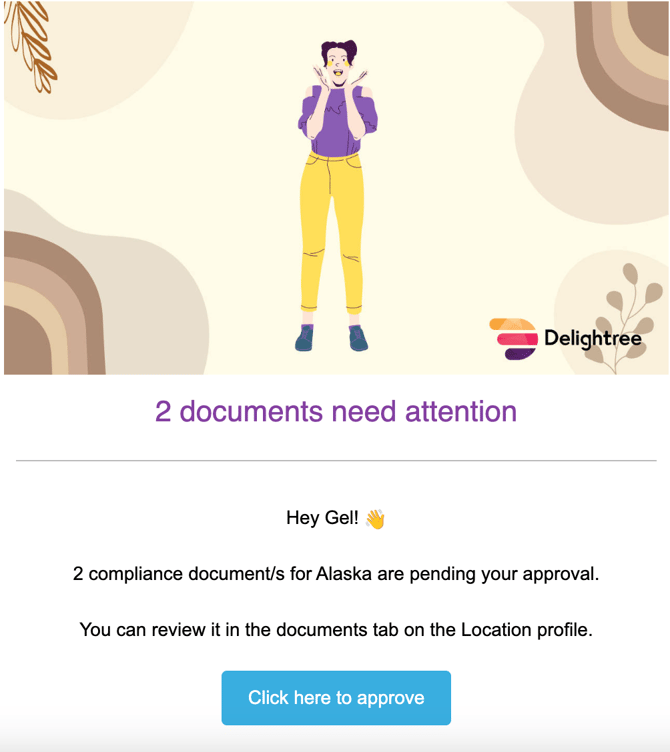
Compliance submissions now go to specific designated approvers per category, instead of notifying every franchisor admin. Assign the right people to each category once, and submissions route to them automatically from that point forward.
If you're currently seeing:
- All admins getting notified for every compliance submission, regardless of relevance
- Ambiguity over who should actually respond to a submission
- Location admins waiting longer than they should for approvals
Designated approvers put the right person on every category and get everyone else out of the noise.
How to Set It Up
1. Assign approvers for each compliance category
In the Compliance settings, assign one or more designated approvers to each category. This is a one-time setup. Approver assignments can be updated anytime and changes don't affect in-progress submissions.
2. Submissions route automatically
When a location admin submits a compliance document, it's sent only to the designated approvers for that category. Only those approvers can act on it: approve or reject.
3. Everyone else stops getting notified
Admins who aren't designated approvers for a category no longer receive notifications for submissions outside their area. Accountability is clear, and inboxes are cleaner.
Access and Coverage
- Master Admins retain access to review all compliance documents at any time — they just won't receive notifications unless explicitly added as approvers for a category.
- Every category must have at least one designated approver — no category can be left without coverage.
- If a designated approver leaves the company, the Master Admin becomes the default approver for any uncovered category automatically.
By default, all Master Admins and Admins will remain approvers for all categories until you set up your designated approvers.
To get the full benefit of this feature, franchisor admins should update each category's approver assignment to match the right owner. Routing only works as intended once approvers are assigned.
Step 6: Approve or Reject New Submissions
When franchisees upload compliance documents, you'll get a notification.
You can:
- Review the file
- Approve it to mark the requirement as complete
- Reject it with a comment (e.g., "Need full policy page")
🆕 Re-Approval Required When a Location Admin Updates a Document
When a Location Admin updates a compliance document — even one that was previously approved — it automatically moves to a pending state and a re-approval notification is sent to designated approvers.
The document is no longer considered compliant until HQ re-approves the new version.
What each user experiences:
HQ Admins — you'll receive a re-approval notification whenever an LA updates a compliance document. Your existing approval notification preferences and delegation settings apply automatically — no reconfiguration needed. Before this release goes live, review your approval delegation settings in Compliance to confirm requests will route to the right people.
Location Admins — after you update a compliance document, it will move to pending. Your update has been received — it just needs HQ sign-off before the compliance status reflects the change. This is expected behavior, not an error.
What hasn't changed:
- No documents need to be reconfigured
- No data migration is required
- HQ approval workflows already in place apply to re-approval requests automatically
👉 This closes the audit gap where location-level updates could go unreviewed. Every version of every compliance document now has a complete HQ-approved record before it counts as compliant.
This closes the gap where location-level updates could go unreviewed. Every version of every compliance document now has a complete HQ-approved record.
You're Set
With clear categories, expiration reminders, approval controls, and automatic re-approval triggered on any location-level update, your compliance workflow maintains full HQ oversight at every step — not just on the first submission. Every version of every document is reviewed and approved before it counts as compliant.