![logo flat.png]](https://8332146.hs-sites.com/hs-fs/hubfs/logo%20flat.png?height=40&name=logo%20flat.png)
Site Visits on Delightree
Imagine this: a franchise owner opens a new location. Everything looks fine on day one, but within weeks the team starts slipping on food safety checks, cleanliness, or customer service standards. Without visibility, corporate doesn’t find out until negative reviews start rolling in.
This is exactly why site visits are so powerful in franchising. They give you a structured, repeatable way to check what’s happening in your locations, identify issues before they escalate, and coach franchisees toward consistent brand standards.
Some real-world examples:
-
Compliance checks → Make sure every location has valid business licenses, insurance, and health & safety certificates.
-
Operational walk-throughs → Ensure the dining area is clean, employees are in uniform, and opening/closing checklists are being followed.
-
New store openings → Use site visits to validate that new owners complete their onboarding steps before launch.
With Delightree’s Site Visits module, you can:
-
Build custom checklists that match your brand standards
-
Assign visits to corporate reviewers, franchisees, or both
-
Track results with scoring and flagged issues
-
Spot trends across locations to focus on the areas that matter most
Here’s how to get started 👇
1. Creating and Using Site Visit Templates
Templates are the foundation of site visits. They contain the questions you’ll ask and can be tailored to what’s important for your business.
Steps to Create a Template:
-
Go to the Site Visits module in Delightree’s main menu.
-
Click + Create Site Visit → + Create from Scratch.
-
Link any relevant resources you want reviewers or owners to reference.
-
Add your questions and answer choices.
-
Toggle on scoring to assign points.
-
Request evidence for flagged answers (photos, docs, etc).
-
Mark only what’s essential as required.
-
-
Save as a draft to finish later, or Publish to schedule your first visit.
Using Pre-Made Templates:
Don’t want to start from scratch? Use the Template Library with ready-to-go checklists for cleanliness, safety, or operations. Customize them for your brand.
2. How to Schedule a Site Visit
Once templates are ready, scheduling is simple:
-
Go to the Templates tab.
-
Select an existing template → click the three dots → Schedule.
-
Choose the frequency: one-time, weekly, monthly, or custom (e.g., every 90 days).
-
Select the type of visit:
-
Reviewers Only – Corporate reviewers conduct the visit.
-
Co-Filling – Corporate reviewers and location admins complete sections together.
-
Location Admins Only – Franchisees/management run the visit themselves.
-
-
Assign locations and reviewers.
-
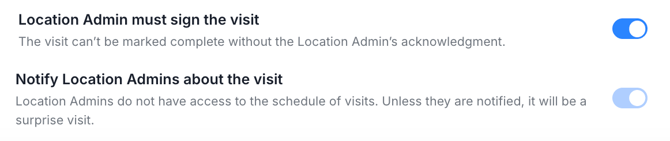
Decide if the visit should be a surprise and/or require a signature from the location admin.
-
Toggle notifications on or off to control if location admins are alerted in advance.
-
Click Save & Publish.
3. Scoring in Site Visits
Scoring lets you track performance at a glance.
-
Assign points to each question during template setup.
Example: “Dining area clean?” → Yes = 10 pts, No = 0 pts. -
Delightree auto-calculates the score when the visit is done.
-
Results appear in the visit report, helping you monitor trends.
What if a question doesn't apply to a location (e.g., an amenity or attraction they don't have)?
By default, an unanswered or "N/A" response scores as 0 points, which can unfairly lower a location's score for something outside their control. To avoid this, give the N/A option the same point value as your top answer when you build the question, so it doesn't count against the location.
Flagging Responses:
Critical responses (e.g., failed safety checks) can be flagged so they’re highlighted in reports and trigger alerts.
Q: Does a flagged response automatically create a follow-up task? Yes. Flagged items allow you to create corrective tasks that are assigned to the relevant location, completed from the Tasks module, and linked back to the site visit so the assignee can see exactly what the task relates to.
4. Managing Site Visits
Access depends on role:
Master Admins:
- Edit live visits (questions, reviewers, locations)
- Pause/resume visits while saving progress
- View results across all locations
Admins (assigned as reviewers):
- Edit/pause visits they're responsible for
- View flagged responses and results
Admins and Franchisor Staff (not assigned):
- Can view progress and results but not edit
Location Admins:
- Can view completed site visit results conducted by the corporate team and compare their score against the company average
- Can complete sections assigned to them in Co-Filled site visits
- Flagged issues are clearly highlighted for them to follow up with their team
Turning a flagged item into a corrective action task
When a site visit response is flagged, you can create one or more tasks directly from it — no need to track issues separately outside the visit.
- Create Task is available on every flagged item. Click it from the flagged response to generate a task, assigned to the relevant location and automatically linked back to the site visit so whoever picks it up can see exactly what it relates to.
- You can create as many tasks as you need from a single flagged item. If one issue needs two separate owners — say, a fix from the franchisee and a follow-up from your internal risk/compliance team — create a task for each, with its own assignee and due date.
- Require proof of completion. Attach a form to the task (e.g., requiring a photo) so the person closing it out has to show evidence, not just mark it done.
- Set due dates and recurrence. Each task gets its own due date, and you can make it recurring if it's a standing check rather than a one-off fix.
- Get notified when it's done. If you're set as the task's supervisor (and have master admin access), you're notified on completion — you can also track everything in the Site Visits dashboard without waiting for that notification.
5. Notifications
Delightree keeps everyone in the loop:
-
Reviewers → Alerts when assigned, rescheduled, or when deadlines approach.
-
Location Owners → Optional reminders before visits, and always notified after results are posted.
6. Getting Started
Here’s how to kick things off:
-
Create Templates – Use ours or build your own.
-
Set Up Scoring – Make sure each question measures something meaningful.
-
Schedule Visits – Decide cadence, assign reviewers, and notify (or surprise) locations.
-
Track & Improve – Use reports to compare scores, flag issues, and coach owners for improvement.
Site Visit Task Dashboard
Site visit tasks now have a centralized dashboard — a single view across every location, without navigating into individual location screens.
What's visible from the dashboard:
- All site visit tasks across your network
- Completion status per location
- Due dates and overdue indicators
- Everything that needs attention, surfaced in one place
Who it's for:
- HQ Admins — audit site visit task completion across the entire network from one screen
- FBCs — see all assigned site visit tasks at a glance without switching between location contexts. If something is overdue or stuck, you'll see it immediately
- Supervisors — monitor site visit task status across all assigned locations in a single view
What to know:
- Existing site visit tasks appear in the new dashboard automatically — no migration or reconfiguration needed
- The previous path (navigating into individual location views) still works, but the dashboard is now the primary way to manage at scale
- How site visit tasks are created, assigned, and completed is unchanged
FBCs managing large territories will get the most out of this immediately. Start your weekly visit prep from the dashboard instead of clicking through locations one by one — overdue items surface automatically so nothing gets missed.