![logo flat.png]](https://8332146.hs-sites.com/hs-fs/hubfs/logo%20flat.png?height=40&name=logo%20flat.png)
What this guide helps you do
Create and assign tasks so your team knows exactly what needs to be done, who is responsible, and how work gets completed.
👉 Start here if you’re setting up tasks for the first time.
Step 1: Create a Task
Go to Tasks from the left-hand menu and select + Add New Task.
Add:
-
Task title
-
Description (keep it clear and actionable)
Step 2: Choose Task Type
Decide how this task should be assigned and completed.
Standard Task
Best for:
-
Clear ownership
-
One person responsible for completion
Collaborative Task (NEW ✨
How collaborative tasks work:
- The task is assigned to a group (location or role)
- Any available team member picks it up — one person at a time
- Once picked up:
- Task shows as "In Progress with [User Name]"
- Other users at the same location see it greyed out and locked
- A "Collaborative" tag is visible on the task card so everyone knows the task type
Two assignment models — choose based on who should be eligible:
- Location → any one member from each location completes it
- Location + User Role → any one member per role per location completes it
What to know:
- Task type is locked at creation — collaborative tasks cannot be converted to standard tasks and vice versa. Choose carefully.
- No account-level configuration required — the option is available immediately for all users with task creation access
💡 Pro tip: If ownership changes based on shifts or availability, use Collaborative Tasks instead of assigning individuals. Opening procedures, safety checks, and shift-end audits are the best starting point.
💡 Pro tip: If ownership changes based on shifts or availability, use Collaborative Tasks instead of assigning individuals.
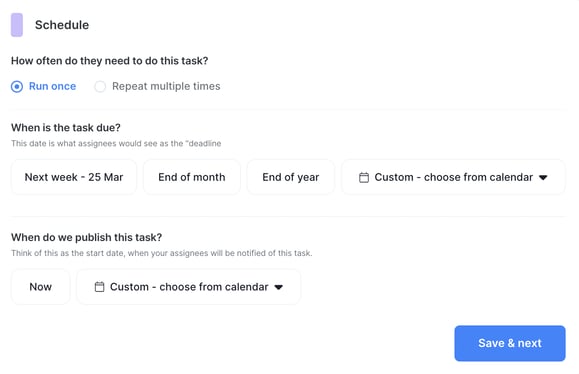
Step 3: Set the Schedule
Decide if this task happens once or repeats.
.webp?width=585&height=479&name=Screen%20Shot%202024-03-19%20at%2010%20(1).webp)
One-time tasks
Use for:
-
Promotions
-
Events
-
One-off operational work
👉 These can still be completed after the deadline.
Recurring tasks
Use for:
-
Daily, weekly, or ongoing responsibilities
💡 Pro tip: Use “Never” as the end date for ongoing responsibilities tied to a role.
What to know:
-
Tasks appear ahead of time so teams can plan
-
If not completed by the deadline → marked incomplete and closed
-
The next task automatically becomes available
💡 Important: Recurring task schedules cannot be edited after publishing. To change it, you’ll need to create a new task.
Step 4: Add Steps (Optional)
Steps act like a checklist within a task.
Use steps to:
-
Link Knowledge Base content
-
Attach Forms
-
Break tasks into smaller actions
Examples:
-
Cleaning procedures with instructions
-
Inventory checks with a form
-
Equipment checks with a checklist
💡 Pro tip: Steps should guide execution — not overwhelm. Keep them simple and relevant.
Step 5: Assign the Task
Choose who should receive the task.
You can assign by:
-
Individual user
-
Location
-
Job role
Step 6: Assign Supervisors
Supervisors monitor completion and ensure accountability.
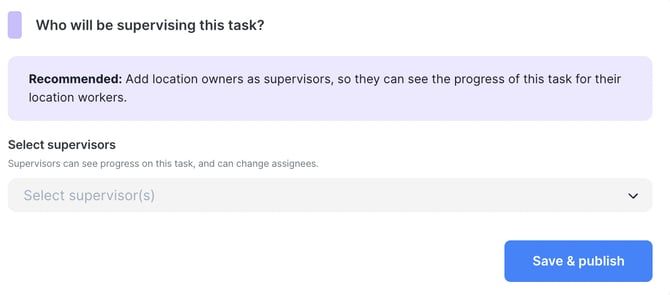
By default:
-
Superadmins are supervisors
Supervisors can:
-
Track progress
-
Monitor completion
-
Reset or reassign tasks (if needed)
-
Step in when tasks are stuck
💡 Pro tip: Always assign a supervisor — this is one of the biggest drivers of completion.
For Collaborative Tasks: Reset and Step-Back Controls
Supervisors have additional controls for collaborative tasks when a task gets stuck with an unavailable team member.
Reset — either the active assignee or the supervisor can reset the task:
- Reset with progress preserved — saves any completed steps, releases the lock
- Reset without progress — clears all progress and returns the task to the full pool
- After a reset, the task is available for pickup again by any eligible team member, including the person who previously held it
Step-back — the active assignee can release the task back to the pool without a supervisor action. Supervisors receive a notification when a step-back occurs.
👉 These controls prevent tasks from sitting locked with an inactive user indefinitely.
Step 7: Review & Publish
Before publishing:
-
✅ Is the task clear?
-
✅ Is the task type correct (standard vs collaborative)?
-
✅ Is the schedule correct?
-
✅ Are the right people assigned?
-
✅ Is there a supervisor?
- ✅ If collaborative: have you chosen the right assignment model (Location vs Location + Role)?
Once published, the task is live and assigned to your team.
🆕 Collaborative Task Analytics & Notifications
Collaborative task reporting is separate from standard task dashboards and does not affect existing reporting.
Analytics available for collaborative tasks:
- Pie chart — completion status across all locations
- Bar/line chart — progress over time
- Leaderboard — tracks individual pickup and completion activity across your team
Audit log captures:
- Task pick-up events
- Step-backs
- Resets (with and without progress)
- Supervisor overrides
- Progress saves
Notifications are sent:
- On task creation — to supervisors and all eligible assignees
- On step-back — to the supervisor
- On task completion — to the supervisor
What happens next
After launch:
-
Tasks appear for assigned users
-
Collaborative tasks can be picked up by available team members
-
Supervisors can monitor completion
-
You can track performance across locations
👉 Next step: Head to Manage Tasks & Track Completion