![logo flat.png]](https://8332146.hs-sites.com/hs-fs/hubfs/logo%20flat.png?height=40&name=logo%20flat.png)
💬 Chat Features 101:
Upon starting your journey with Delightree, you will find that your account already includes a selection of pre-existing chat channels.
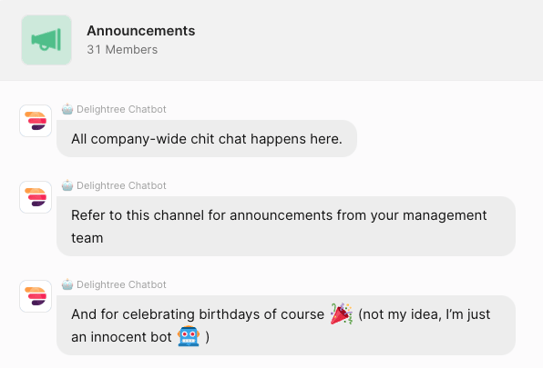
- Announcements - This channel is where all users, no matter their permission level, can come together to share brand-wide updates, announcements, and more.
- All Owners - This channel is for both Franchisees and Franchisors. Franchisees, hop on board to collaborate and toast to victories. Franchisors, utilize this channel for seamless communication, sharing of resources, and much more.
- Inner Circle - This exclusive channel is dedicated to the corporate team. HQ, feel free to use this space for discussing top-secret plans to expand to over 100 locations in a year, or for any other purpose you see fit.
👥 Creating new Groups or Channels
Creating new groups or channels is easy, simply click 'Add', title your chat, and add members!
Difference between Group and Channel? Two's a crowd group and three's a party channel 🎉
🗣️ Effective Ways to use Chat
We have optimized chat features to make them user-friendly and enjoyable.
👉 Easily share files, photos, videos, and links from your device. (and your favorite emojis 😜)
🚧 Establish channels tailored for specific initiatives such as marketing campaigns, menu enhancements, or staying in touch with your latest vendor.
Reminder: Superadmins have the ability to adjust visibility settings for all content on Delightree, including chat. For further assistance, feel free to reach out to your Customer Success Manager for more information.
Chat Updates: What’s New ✨
We’ve made a few updates to help you stay organized, find information faster, and communicate more clearly in Delightree Chat.
1. Pin Important Messages
You can now pin messages in channels or direct messages.
-
Pinned messages are saved in a “Pinned” section for quick access
-
Great for announcements, key instructions, or reminders
-
Just click a pinned message to jump right to it
2. Search Within Conversations
You can now search inside any chat.
-
Quickly find past messages, decisions, or instructions
-
Results highlight your keywords
-
Click a result to go to that message
3. Improved Image Sharing
When sending images, you’ll now see a preview before sending.
-
Add a caption for context or choose “Send without caption”
-
Helps avoid confusion when sharing photos (especially for operations or site issues)
-
You can upload multiple images and reorder them before sending
4. New Chat Tabs
Your chat list is now organized into tabs:
-
All → everything
-
Unread → conversations that need your attention
-
Channels → group conversations
This makes it easier to stay on top of what matters without digging through everything.
5. “Clear Chat” Update
“Delete Chat” has been renamed to “Clear Chat.”
Quick Tips
-
Use pinning for anything your team shouldn’t miss
-
Use search instead of scrolling
-
Add captions to images to avoid back-and-forth clarification
-
Check the Unread tab to stay on top of tasks and updates
If you regularly use chat for operations, these updates will help you move faster and reduce miscommunication.