![logo flat.png]](https://8332146.hs-sites.com/hs-fs/hubfs/logo%20flat.png?height=40&name=logo%20flat.png)
What this guide helps you do
Set up a Training Path from start to finish — including who gets trained, how it's structured, and how pacing is enforced. This guide also covers Assignment Paths for automating multi-stage programs, and the one-level prerequisite limit that applies to Training Path dependencies.
👉 If you’re launching training for the first time or rolling it out to new locations, start here.
Step 1: Create Your Training Path
Start by creating a new training path or using an existing one as your foundation.
Option A: Create from scratch
Use this when:
- You’re building brand-new training
- The content is unique to your operations
Option B: Duplicate an existing training path
Use this when:
- A franchisor or corporate team has already created a template
- You want to reuse quizzes, resources, and structure without rebuilding
What duplication includes
Copied over automatically:
- Quizzes
- Skill evaluations
- Linked resources
- Training structure and flow
- Name, category, and description
You’ll still need to set:
- Who gets assigned
- Who supervises
- When it’s scheduled
What to know
- Not all training paths can be duplicated (this is controlled by corporate)
- You must have permission to create training paths
- You must be assigned as a supervisor to duplicate
- Location Admin's with this access can remove and reorder content after duplication
💡 Pro tip: Use duplication for speed, then customize assignments for your location.
Step 2: Set Training Structure
Define how training should be completed.
Add learning components:
- Content (videos, documents, etc.)
- Quizzes
- Skill evaluations (if hands-on validation is needed)
Note: Training content is linked directly to your Knowledge Base, so you’re always using the latest version. If a chapter or asset is updated there, the changes automatically appear everywhere it’s used in Delightree—including your Training Paths.
🆕 Learning Enforcement Controls
For compliance-sensitive training or certification programs, you can now configure pacing rules on any Training Path to ensure learners actually engage with the material — not just click through it.
Available enforcement settings:
- Minimum time per video — A learner must spend a set amount of time on a video before they can advance.
Restriction on video limits only work for videos directly uploaded via the Training Path.
- Date-locked start times — A module cannot be started before a specified date, regardless of when the learner was enrolled. Useful for cohort-based or staged rollouts.
- Per-module completion deadlines — Set a deadline for each individual module. Supervisors gain early visibility into at-risk completions before the overall training deadline is missed.
What to know:
- Existing Training Paths operate without enforcement by default — no learner experience changes until you explicitly configure it on a given Training Path
- Frontline staff who currently move through training at their own pace will encounter enforcement gates if enabled — plan for that change management communication with your team
- If you're enabling this broadly, pilot on one Training Path first before rolling out across your library
💡 Pro tip: Use enforcement controls for compliance, certification, or regulated training. For informational or onboarding-light content, keep it frictionless.
Step 3: Assign Who Gets Training
Decide exactly who should be enrolled in this training path.
You can assign by:
- Job role
- Location
- Individual users
Use inclusion and exclusion rules
This helps you control assignments without creating duplicates.
Use this when:
- You want to assign training broadly but exclude certain users
- You want to avoid reassigning training to users who already completed it
💡 Pro tip: Keep assignments simple at first. You can always refine later.
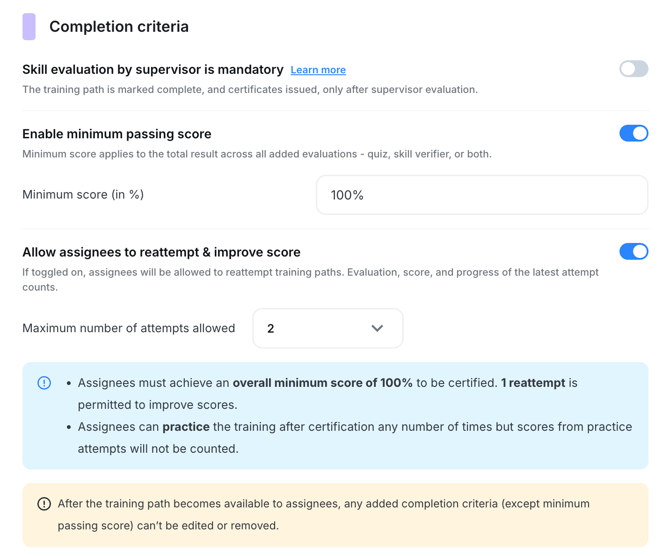
Step 4: Set Completion Rules (Scoring & Retakes)
Define what it means for training to be successfully completed.
Set a passing score (optional)
If your training includes quizzes or skill evaluations, you can require a minimum score.
- Users who meet the threshold → Certified
- Users who don’t → Failed
Note: If no passing score is set: → Training is marked Certified upon completion
Set retake attempts
Control how many times a user can retry the training.
- You can allow 1–3 attempts
- This cannot be changed after publishing
What to know
- Each attempt replaces the previous score
- The latest score is saved (not the highest)
After all attempts are used
Users can still access the training in Practice Mode:
- They can review content
- Their score will not change
💡 Pro tip: Use scoring for compliance or critical training. Skip it for informational or introductory content.
Step 5: Assign Supervisors
Supervisors are responsible for overseeing training progress and, when needed, approving completion.
By default:
- The training path creator
- Master admins
You can also:
- Delegate oversight to specific team members
- Delegato specific user role(s)
- You can combine role-based and individual selection on the same Training Path, use both if needed.
- Roles whose members don't have the required training permissions are filtered out of the role selection list automatically.
Assigning to User Roles - How it Works
Choose a role in the supervisor field
When creating or editing a Training Path, Assignment Path, Task, or Site Visit Task, open the supervisor selection and switch to role-based assignment. You'll see Franchisor and Location roles listed separately so you can match the right scope.
Every eligible member of that role is assigned automatically
Selecting a role adds all current members of that role as supervisors. You don't need to know individual names — especially helpful for roles that vary by location.
Assignments stay current as your team changes
When someone is added to a selected role, they gain supervisory access automatically. When someone leaves the role, access is removed. No manual updates needed.
Supervisors can:
- Track progress
- Evaluate skills
- Mark training complete for in-person sessions
💡 Pro tip: Assign supervisors at the location level so training stays close to daily operations.
Use prerequisites (optional)
Require certain training to be completed before moving forward.
Use this when:
- Order matters
- You want structured learning progression
🆕 Step 5b: Set Prerequisite Training Paths (Optional)
You can require a learner to complete one Training Path before another becomes available.
How it works:
- Set a Training Path as a prerequisite when creating or editing a Training Path
- The dependent Training Path remains locked until the prerequisite is marked complete
Important: Prerequisites are limited to one level of depth.
One Training Path can require another as a prerequisite — but that prerequisite cannot itself have a prerequisite. Chains deeper than one level are not supported and will be blocked automatically.
If you have existing Training Path dependency chains with more than one level (TP A requires TP B, which requires TP C), those configurations need to be reviewed and simplified before the release date.
👉 Not sure if your configuration is affected? Contact your Delightree CS team for a pre-release audit.
Step 6: Schedule the Training
Decide when and how often training should be completed.
Options include:
- One-time training
- Recurring (monthly, quarterly, etc.)
What to know:
- Scheduling controls when training is assigned
- You can reuse the same structure across locations
Note: When you set assignee criteria to a specific user role, any new user who activates their account and matches that role will be automatically enrolled in the training. If you define a duration (for example, 1 week), that time period begins on the exact date the user is enrolled, not when the training path was created.
🆕 Step 6b: Create an Assignment Path for Multi-Stage Programs (Optional)
If you're managing a structured program — new hire onboarding, role certification, multi-stage compliance training — Assignment Paths let you chain multiple Training Paths into a single automated sequence.
What is an Assignment Path?
An Assignment Path sits above Training Paths. It groups multiple Training Paths into a defined order and handles unlock logic automatically — the next Training Path becomes available only after the previous one is completed.
Assignment Paths can be assigned manually or triggered automatically based on role, location, or a new hire event.
Example: New Hire Onboarding
- Company Orientation
- Food Safety Certification
- Role-Specific Training
- Manager Sign-Off Assessment
Each Training Path unlocks only after the previous one is marked complete. When connected to your onboarding workflow, the entire sequence starts automatically on a new hire's first day — no manual triggering needed.
How to set one up:
- Go to the Assignment Paths section in Learning and Development
- Create a new Assignment Path and name it
- Add your Training Paths in the order they should be completed
- Configure whether the sequence is sequential (each unlocks after the previous) or grouped for unified tracking
- Set assignment rules — manual, by role, by location, or tied to a new hire event
What to know:
- Assignment Paths are fully additive — existing Training Paths and their assignment logic are not affected
- Existing Training Paths are not automatically enrolled in Assignment Paths — HQ Admins must set this up from the new Assignment Paths section
- Location Admins and Supervisors get a unified view of where each team member is within a sequence, rather than tracking multiple individual Training Paths separately
💡 Pro tip: Assignment Paths are highest value for onboarding-heavy teams. If new hires go through more than two Training Paths, an Assignment Path will save significant manual tracking time.
Last Step: Review & Launch
Before going live, do a quick check:
- ✅ Are the right users assigned?
- ✅ Are supervisors set correctly?
- ✅ Does the training flow make sense?
- ✅ Is scheduling correct?
Once published, training is live and visible to your team.
Note: To allow supervisors—such as Location Admins (owners or managers)—to assign training to members of their own team, you need to enable the “View, Can Cross Train” permission. Turning on this option gives them the access they need to enroll their staff in the appropriate training paths.
What happens next?
After launch:
- Users begin training
- Supervisors can track progress
- You’ll be able to monitor completion and performance
👉 Next step: Head to Manage Training & Track Progress to see how your team is performing.