![logo flat.png]](https://8332146.hs-sites.com/hs-fs/hubfs/logo%20flat.png?height=40&name=logo%20flat.png)
Introducing the New Notification Center: Simplifying Your Day-to-Day Operations
In today's fast-paced business environment, staying updated without being overwhelmed is crucial. That's why we're excited to introduce the Notification Center, a rebuilt settings page that puts you in control of exactly which notifications you get, how often, and where. Here's how it works.
Centralized Control
Gone are the days of hunting through multiple modules to manage your alerts. The Notification Center brings everything, Tasks, Training, Forms, Chat, and more, into one place.
Path: Bell icon → Settings.
One of the biggest changes here: assignee and supervisor notifications are now split. Anywhere there's a supervisor assignment (Tasks, Trainings, and Assignment Paths), you'll see two separate categories, one for your work as an assignee and one for your work as a supervisor. If you're both, you can finally tune each one independently, instead of one setting governing both roles.
Customizable Notifications
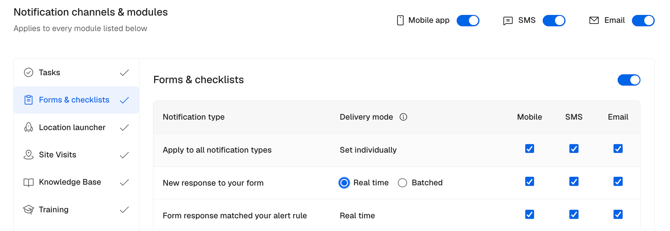
Real time or Batch, your choice. Any notification that supports batching now shows both options right in the Notification Center, and you pick per notification. Batching groups repeated alerts (like several people completing the same training) into a single message per time window instead of pinging you for every single event. Batch windows currently run from 15 minutes (Chat) up to 6 hours (like a training completion summary for supervisors), and they're fixed per notification type at this stage.
Channel master switches. Want to turn off all mobile push notifications, or all SMS, or all email, at once? One switch does it for that whole channel.
Module-level toggles. A single click turns notifications on or off for an entire module, like Tasks or Training.
Never Miss What's Important
Batching only applies to the "here's what happened" style notifications, the ones supervisors use to stay in the loop. Anything that needs your immediate action, like a due-date reminder or an overdue alert for something assigned to you, stays real time. So you can quiet the noise without losing visibility into what actually needs a response.
Daily Digest for Supervisors
Supervisors can also turn on a single daily email that rounds up everything they oversee, delivered at 5:00 PM in their local time zone. It's additive, meaning it sits on top of your existing notifications rather than replacing them.
If you'd rather the digest be your only touchpoint, you can switch the underlying notifications to Batch or off individually in the Notification Center. It's a single on/off toggle, and you're never locked in.
Mute Just One Item, Not a Whole Category
Previously, muting meant turning off an entire notification category. Now you can mute notifications for one specific training, task, or form and keep everything else flowing:
- Training: Open the training → click Disable Notifications. A green confirmation appears, and the action becomes Enable Notifications, so it's reversible any time.
- Tasks: Task creators and supervisors can disable notifications per task and re-enable later. (Since Tasks are still card-based rather than table-based, this is currently one task at a time; bulk actions are planned alongside the upcoming Tasks re-architecture.)
- Forms: This already existed, but the bell icon is gone. Head to the form → the three-dot menu (⋯) → Enable/Disable Notifications. Forms also support bulk actions: select multiple forms, all forms on the page, or across all pages, and enable or disable notifications in one go.
Muting is per-user, so if you mute a training, it's silenced for you only. Other supervisors on the same training keep getting their notifications as usual. And muting only affects delivery, never the underlying record, its data, or reporting.
Efficient Notification Management
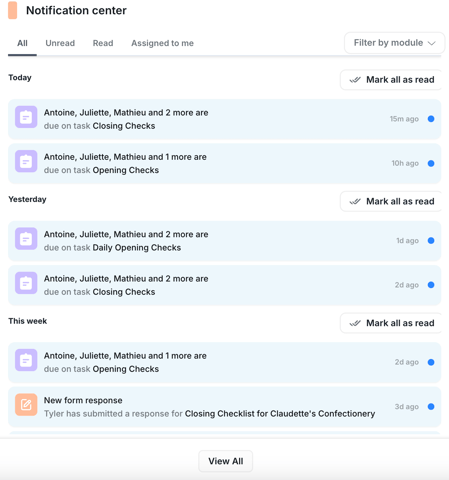
Mark notifications as read or unread, with status synced across all your devices. Combined with batching and instance-level mute, this gives you a much clearer picture of what's been addressed and what's still waiting on you.
How to Get Started with the Notification Center
- Access the Notification Dashboard: Log into your account and find the Notification Center via the bell icon → Settings.
- Set Your Preferences: Choose Real time or Batch per notification, flip channel and module-level switches, and turn the Daily Digest on if you supervise others.
- Fine-tune as you go: Mute individual trainings, tasks, or forms whenever one stops being relevant to you, without losing the rest of your notifications.
❓FAQs
Are these account settings, or does each person set their own? Individual. Every user configures their own Notification Center, and there's currently no admin UI to set this for a whole team from the app.
What if we want a company-wide standard, like everyone on Batch? Reach out to your Delightree contact. A backend script can bulk-preset users to Batch or real time as needed.
Will I lose my existing notification preferences? No. Existing preferences carry over. This release changes how they're presented and adds the Batch/Real-time and Digest choices on top.
Can I change the batch window, or the digest send time? Not yet. Batch windows are fixed per notification type, and the Daily Digest is fixed at 5:00 PM local time. Both are areas we're looking at for future releases.
Where did the bell icon on Forms go? It moved into the three-dot menu (⋯) on each form.
Can I mute an individual audit, ticket, or launcher project? Not yet, instance-level mute currently covers Training, Tasks, and Forms.
If I mute a task, do I still see it in reports? Yes. Muting only affects notification delivery, not the task itself or its history.