![logo flat.png]](https://8332146.hs-sites.com/hs-fs/hubfs/logo%20flat.png?height=40&name=logo%20flat.png)
Give your team one place to submit, track, and resolve requests — instead of managing support through email, chat, or Slack.
If your team is currently:
- Sending requests through email or group chats
- Following up manually (“did you see this?”)
- Losing track of open issues
- Answering the same questions repeatedly
👉 Support Tickets replace all of that with a structured, trackable system:
- Log every request
- Track status from start to finish
- Keep all communication in one place
- Ensure nothing falls through the cracks
How Support Tickets Work
1. Submit a ticket
Anyone can:
- Create a ticket
- Describe the issue
- Track updates from their My Tickets view
2. Keep communication in one thread
- All replies happen inside the ticket
- Attach files, screenshots, or context
- No more back-and-forth across tools
3. Track status
Tickets move through clear stages:
- Open
- In Progress
- Pending (waiting on requester)
- Resolved
- Closed
4. Route requests automatically
- Tickets can be assigned manually
- Or routed by category (e.g. Operations, Marketing, Technical)
👉 The right person gets notified immediately
5. Manage internally (HQ only)
Admins can:
- Assign tickets
- Update status
- Add internal notes (not visible to the requester)
- Monitor all tickets in one dashboard
What users will experience
Frontline / franchisees
- Submit a request
- Get notified on updates
- Reply directly in the ticket
- Track progress easily
HQ / support teams
- See all incoming requests in one place
- Prioritize by severity
- Assign and resolve efficiently
- Avoid duplicate or missed requests
👥 Who Can Receive Notifications
-
Ticket Creator – the person who submitted the ticket
-
Assignee – the person responsible for resolving the ticket
-
Watchers – anyone added to stay in the loop
-
Ticket Managers – users with permission to manage tickets
When Notifications Are Sent
1. When a Ticket Is Created
-
If no category or auto-assignee is set → only a manager is notified
-
If a category with an assignee is selected (or someone is assigned manually) → the assignee is notified
2. When There’s Activity on a Ticket
The following actions notify relevant users (creator, assignee, watchers):
-
A new comment is added
-
Someone is @mentioned in a comment
-
The ticket status changes
-
The ticket is resolved
3. When More Information Is Needed
If required details are missing:
-
The ticket creator will be notified to provide additional information
⚙️ Category Changes & Required Fields
If the ticket category is updated:
-
The ticket will inherit any required fields tied to that category
-
If required fields are missing:
-
The person updating the ticket can fill them in, or
-
Request the ticket creator to provide the details (this triggers a notification)
-
📍 For Location Teams
-
Location staff can submit tickets
-
If additional required details are needed, they will be prompted via notification to complete them
How to get set up
Before rolling this out:
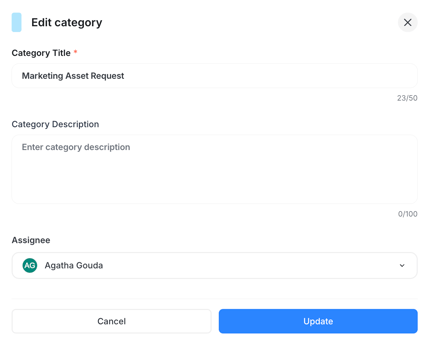
1. Set up categories
- Use defaults (Operations, Marketing, Technical)
- Assign an owner to each
👉 This ensures tickets are routed automatically
2. Customize Fields Based on Request Type (Optional)
Think about the types of requests your team submits most often, and what information you typically need to resolve them.
For example:
- Marketing requests → campaign name, asset type, due date
- Operations issues → equipment type, description, urgency
- General inquiries → topic and details
Adding a few targeted fields for each request type helps your team submit clearer tickets upfront so you can respond faster without follow-up questions.
Start simple. Add fields only where they save time or reduce back-and-forth.
3. Define ticket types
- Required when creating tickets
- Helps organize requests
4. Confirm permissions
- Ensure your support team has Manage Tickets access
5. Align your team
Let your network know:
“All requests should now be submitted through Support Tickets — not email or chat”
💡 Pro tip: The biggest win comes from standardizing where requests go. If Support Tickets aren’t the default, teams will fall back to old habits.
What to expect
- All requests are centralized
- Communication stays tied to the issue
- You get a clear audit trail of what happened and when
- Nothing gets lost or forgotten
Quick recap
Support Tickets give you:
- One place for all requests
- Clear ownership and routing
- Real-time status tracking
- Full conversation history
👉 No more chasing updates or digging through messages.
What to do next
Start by:
- Setting up categories and owners
- Introducing Support Tickets to your team as the new standard for requests