![logo flat.png]](https://8332146.hs-sites.com/hs-fs/hubfs/logo%20flat.png?height=40&name=logo%20flat.png)
What this guide helps you do
Track task completion across your team, understand what’s getting done (and what’s not), and communicate directly within tasks to keep work moving.
👉 Use this once tasks are live.
Get a Quick Pulse on Task Completion
Start by understanding overall performance across your team.
Look for:
- Tasks not started
- Tasks in progress
- Tasks completed
- Tasks missed or overdue
Review by:
- Location
- Task
- Individual users
💡 Pro tip: If tasks aren’t being started, it’s usually a rollout or ownership issue — not a setup issue.
Understand Task Statuses
Not Started
- Task is assigned but hasn’t been picked up
In Progress
- A user has started the task
For collaborative tasks:
- Shows as “In Progress with [User]”
- Other users at that location will see it locked
Completed
- Task has been finished successfully
Overdue
- Task was not completed before the deadline
- Automatically closes for recurring tasks
💡 What to know: Recurring tasks continue to cycle regardless of completion — missed work does not carry over.
Manage Collaborative Tasks
Collaborative tasks require a slightly different approach to oversight.
What to watch for:
- Tasks stuck “In Progress” with one user
- Tasks not being picked up
- Frequent resets or step-backs
How to take action:
- Reset the task to make it available again
- Choose whether to preserve or clear progress when resetting
- Step in if a task is stuck with an inactive user
💡 Pro tip: If tasks frequently get stuck, it’s usually a staffing or ownership clarity issue.
Communicate Directly Within Tasks
Keep all updates, questions, and decisions tied to the task itself.
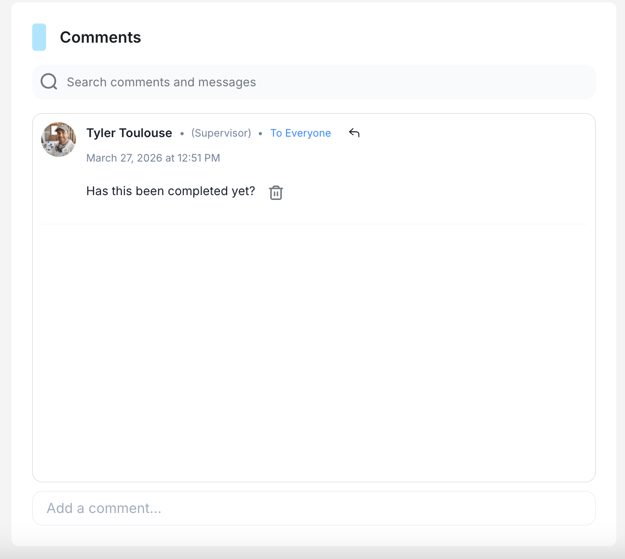
Use comments to:
- Share updates
- Ask questions
- Clarify instructions
- Provide feedback
Public comments
- Visible to everyone working on the task
- Best for updates, questions, and alignment
Private comments
- Between a supervisor and an assignee
- Best for coaching or sensitive feedback
Who can see and do what
- Supervisors and task creators
- Can start both public and private comment threads
- Assignees
- Can see public comments
- Can start private threads with supervisors
- Master Admins
- Have full visibility into all comments
💡 What to know: All comments stay attached to the task, creating a clear history of updates and decisions.
Use Mentions to Drive Action
Tag teammates using @name to notify them instantly.
What happens when you mention someone:
- They receive a notification (web + mobile)
- They’re alerted directly within the task
Use mentions when:
- You need a response
- You’re assigning responsibility
- You’re flagging an issue
💡 Pro tip: Encourage your team to use mentions instead of side chats to keep communication tied to the work.
Keep Work Moving with Visibility
What comments and mentions enable:
- Faster responses
- Clear accountability
- Less back-and-forth across tools
What to look for:
- Tasks with no updates
- Questions left unanswered
- Repeated confusion on the same task
💡 Pro tip: If the same question comes up repeatedly, update the task description or steps.
Identify Patterns Across Your Team
Look for:
- Locations with low completion
- Tasks consistently missed
- Tasks generating a lot of discussion or confusion
- Individual team members with consistently low completion or on-time rates
What this tells you:
- Where expectations aren’t clear
- Where tasks need improvement
- Where additional support is needed
- Where coaching conversations need to happen at the individual level, not just the location level
💡 Pro tip: If multiple users struggle with the same task, improve the task — not just follow up on people.
🆕 View Performance by Individual Team Member
The Task Dashboard now includes a member-wise breakdown so you can see task performance at the individual level — without pulling separate location reports or waiting until end of month.
What you can see per member:
- All tasks assigned to that person
- Tasks completed, pending, or overdue
- Completion rate — percentage of assigned tasks finished
- On-time rate — percentage completed before the deadline
- Overdue count — tasks that missed the deadline
How to access it:
Go to the Task Dashboard and filter by team member. The breakdown is available immediately — no configuration required.
Who can see what:
- HQ Admins — member-wise data across all locations from a single dashboard view, making it possible to spot network-wide performance patterns without navigating location by location
- Supervisors — individual breakdown for their team, useful for 1:1s and performance conversations
- Location Admins — member-level view for their own location's team
Existing dashboard views and aggregate reporting are unchanged. The member-wise breakdown is additive — nothing moves, nothing is removed.
💡 Pro tip: Use the member-wise view in 1:1s rather than relying on memory or manual tracking. Completion rate and on-time rate together tell a more useful story than either metric alone.
Take Action as a Supervisor
Supervisors play a key role in keeping tasks on track.
Supervisors should:
- Monitor task completion regularly
- Step in when tasks are stuck
- Use comments for guidance and feedback
- Reset tasks when needed
What happens next
Once you’re actively managing tasks:
- Completion becomes more consistent
- Communication stays connected to the work
- Teams stay aligned without extra follow-up
👉 Next step: Head to Optimize & Customize Tasks